
Smart-LinQ automatically creates Work Status pends on Initial Filings to help administrators satisfy eligibility requirements before requesting reimbursement.
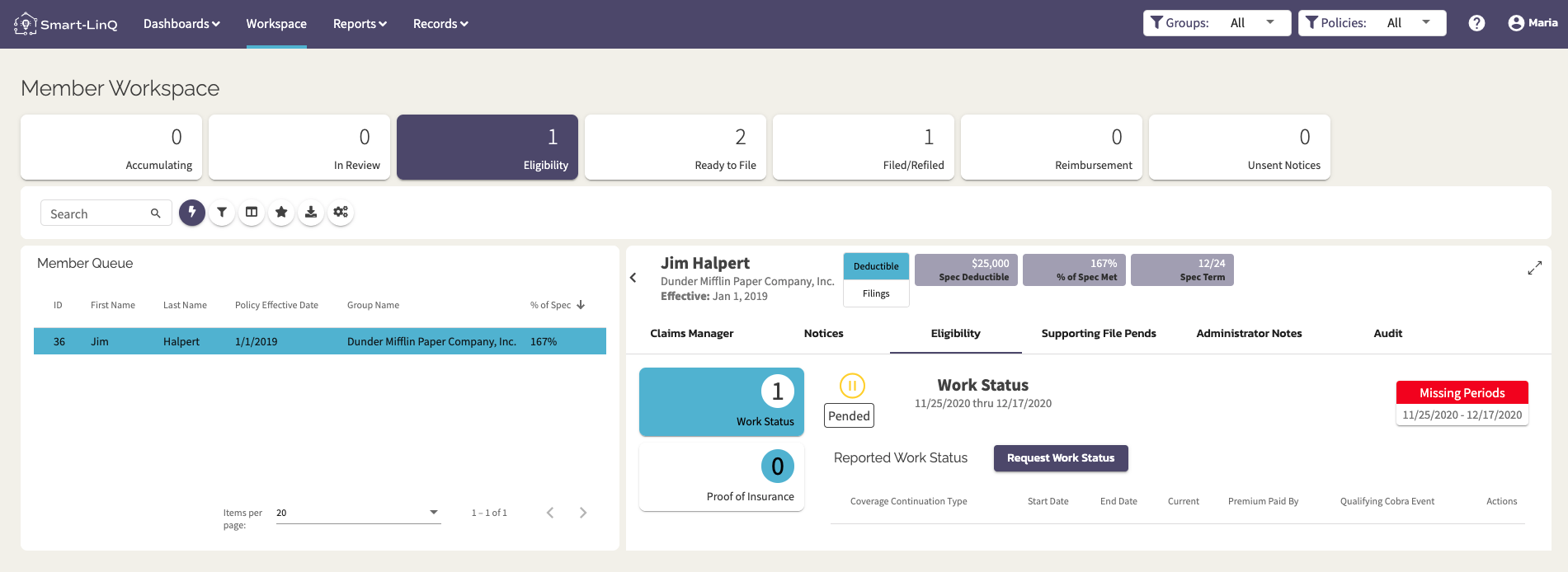
These pends are easily discovered by filtering on the "Eligibility" KPI in the Member Workspace.
Work Status Period Calculation
Smart-LinQ auto calculates the work status period based off of the claims in the Initial Filing. The system takes the minimum Service From Date and the maximum Service To Date to create the range. These are the dates that will be requested in the Work Status Request Form and will ultimately clear the pend when satisfied.
Request/Manage Work Status Request
- Select the desired member and click on the Eligibility tab to view the pend.
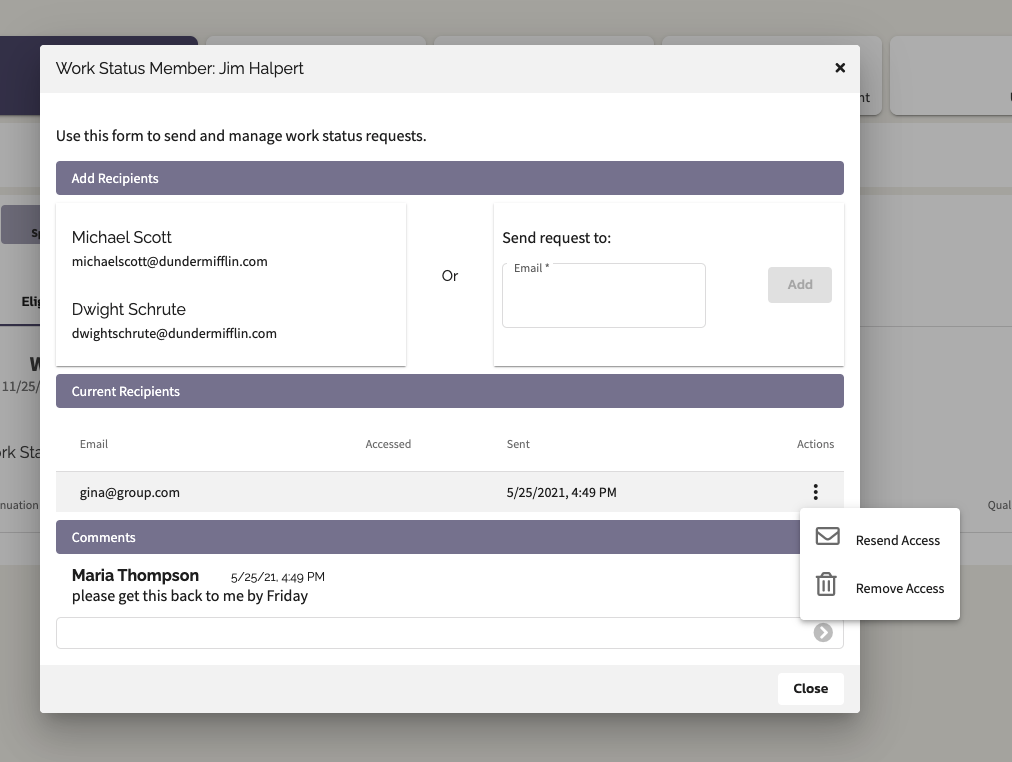
- Press the "Request Work Status" and a popup will appear.
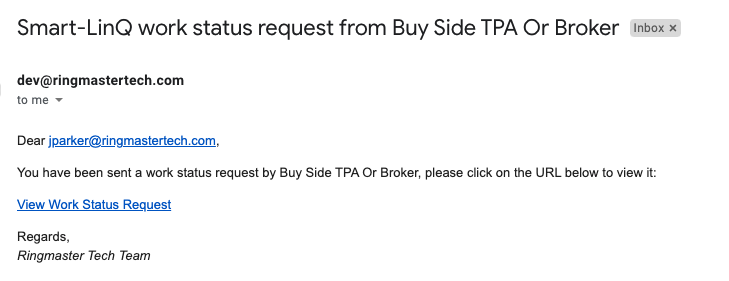
- Under "Add Recipients" you can select or type in an email to issue the request to. The email will come from Ringmaster and will contain a secure link to the form for completion.
- Under "Comments" you can add a thread of comments which will display on the Work Status Request Form to the recipient. In addition you can view any comments that the recipient may have posted back.
- Under "Current Recipients" you can resend the email and you can remove access.
The Recipient's Experience
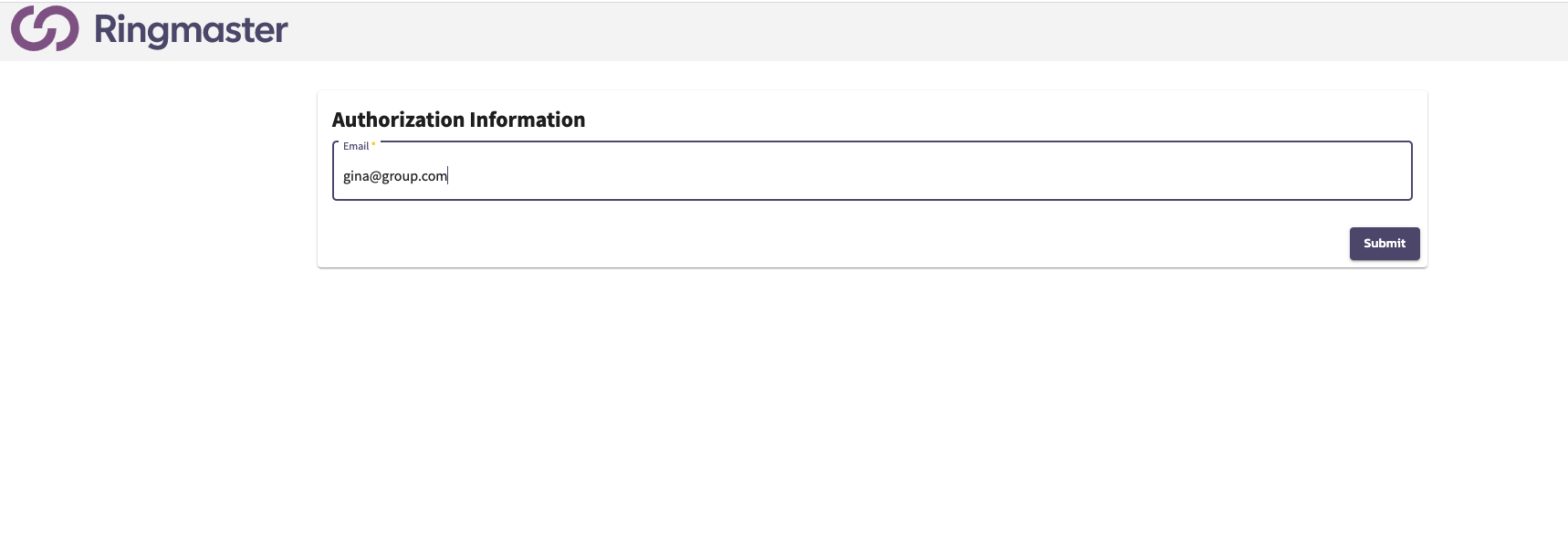
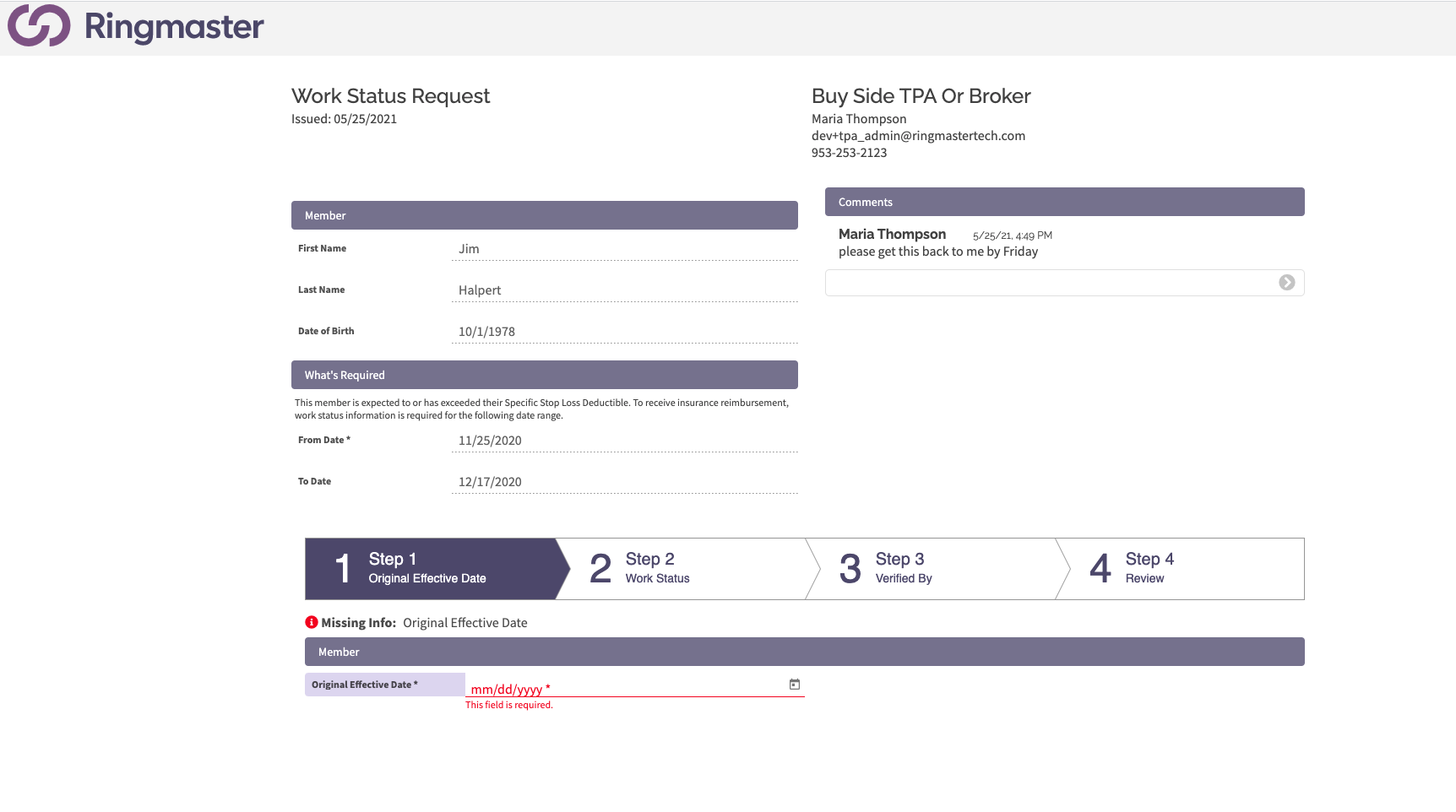
The employer group's representative will be taken to a screen where they will verify their email, and will be able to input information that verifies the employee was covered during the date range the claims were made. They will also have the ability to add comments and upload any relevant documentation including but not limited to COBRA or FMLA forms or employee handbook.
Once the work status has been verified, the filing will move into the Ready to File status providing other supporting file pends are cleared as well.
Email with Link
Authorization Screen
Work Status Request Form / Stepper
Comments
0 comments
Please sign in to leave a comment.