
Through Smart-LInQ, Stop-Loss TPAs can now request member work status eligibility via secure, web-based experience.
1 - Email Notification
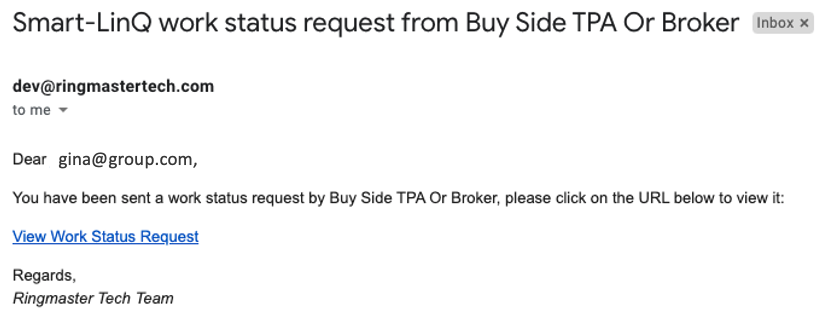
The employer group's representative will receive an email from the Ringmaster system, issued by the TPA. This email will contain a secure link.
2- Secure Link
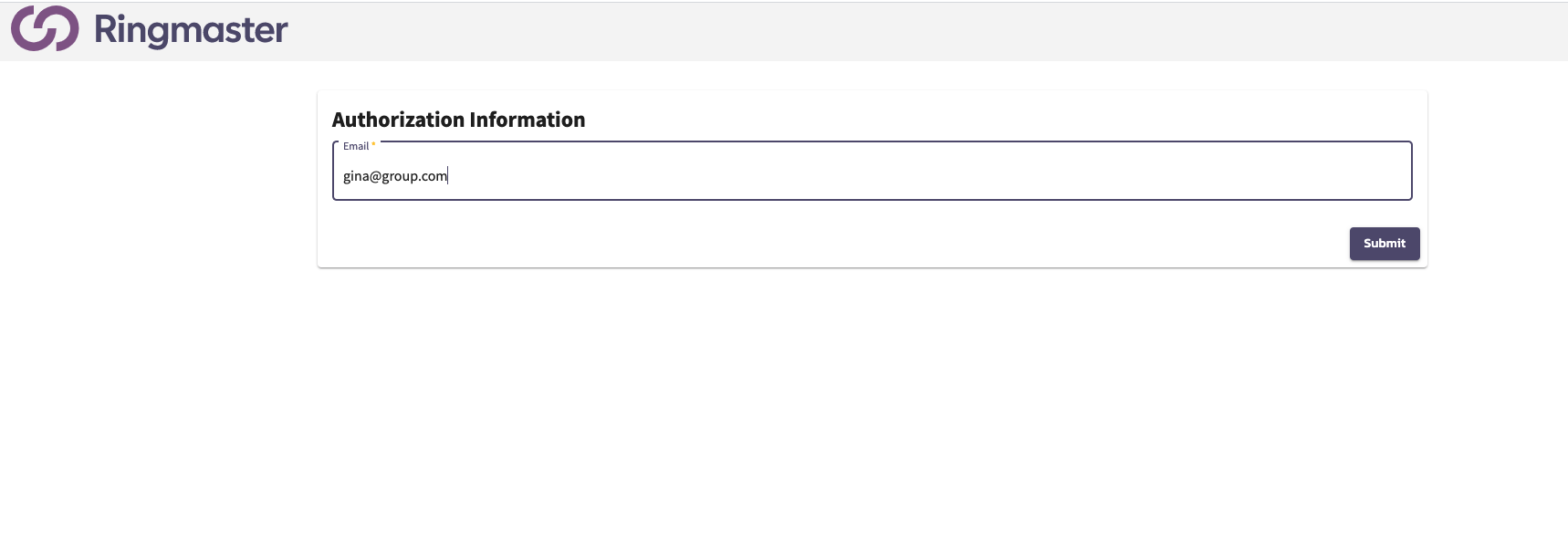
In the email click on "View Work Status Request" to open a new browser window. Note that you must use a supported browser ( Internet Explorer is not supported). To login you must enter the email address the link was sent to.
3 - Review Work Status Request Form
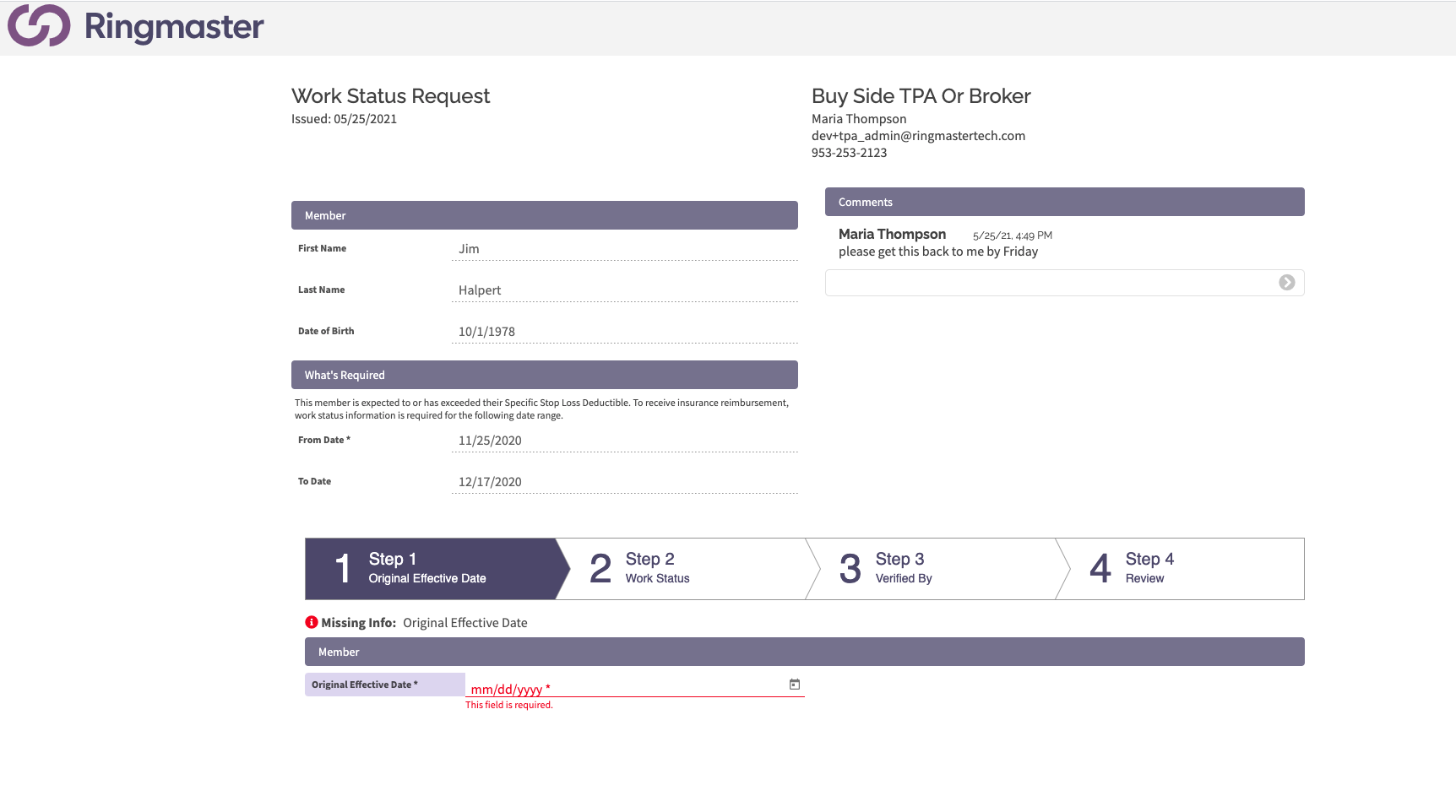
Once you've accessed the form you will notice pertinent information such as:
- Requestor
- Member
- Period to be verified
- Any additional comments from the TPA. Which you can reply back to if desired.
4 - Complete the Work Status Stepper
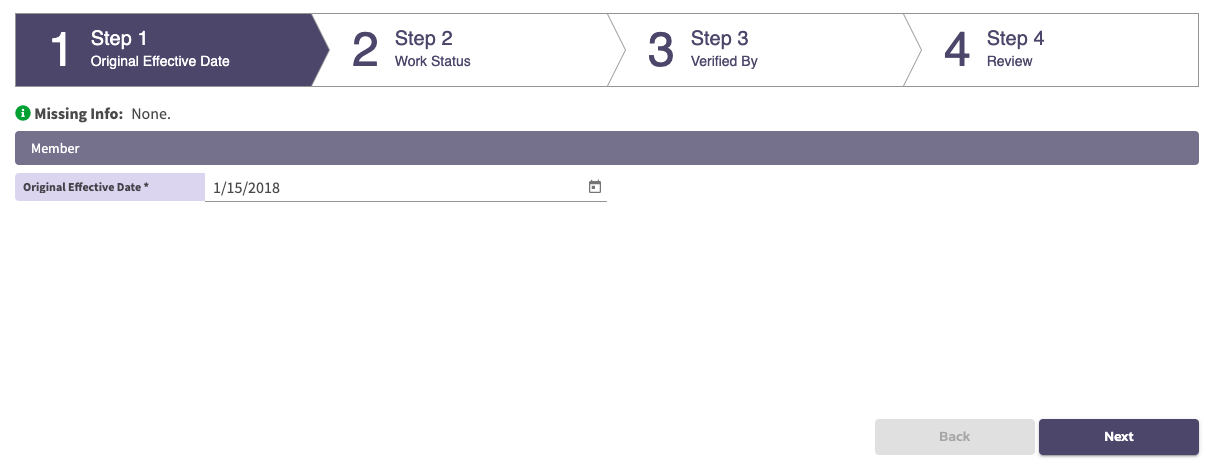
A stepper is provided to help the group representative satisfy the needed information.
- Step 1: Provide the Original Effective date for the member. This is the first date the member became effective on the employers benefit plan. Press "Next"
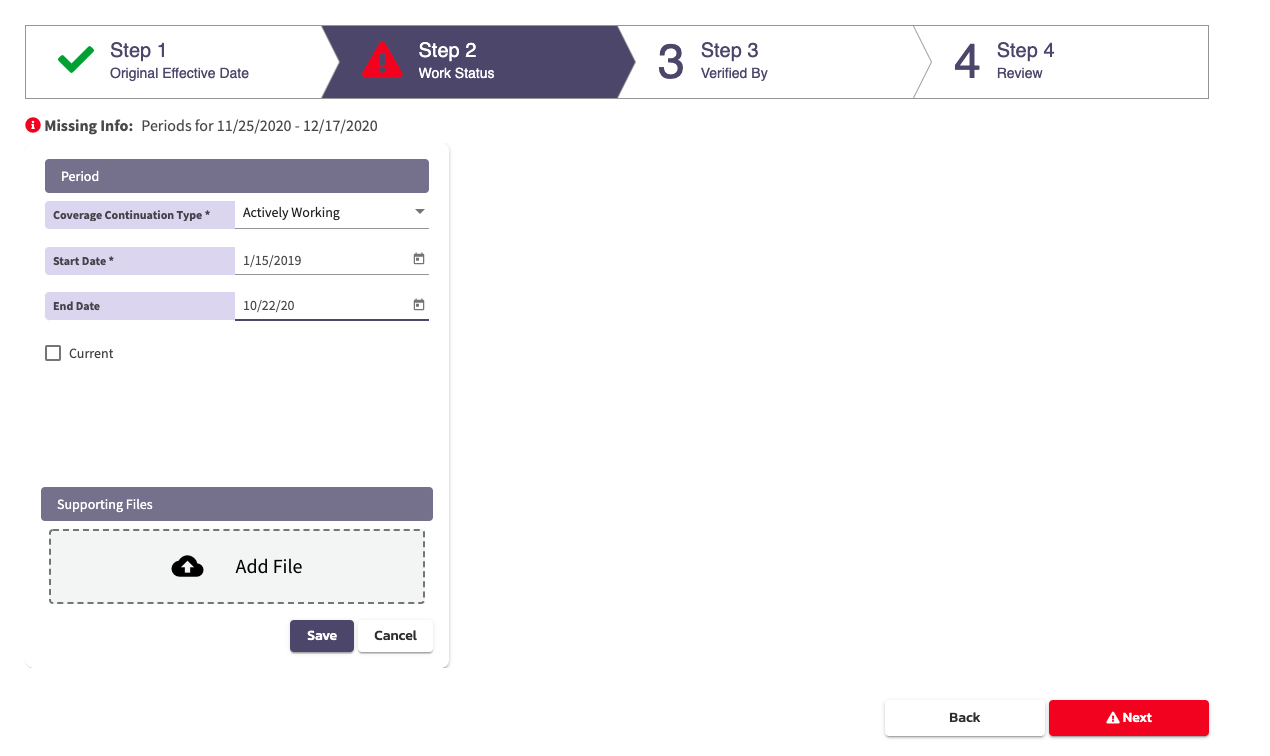
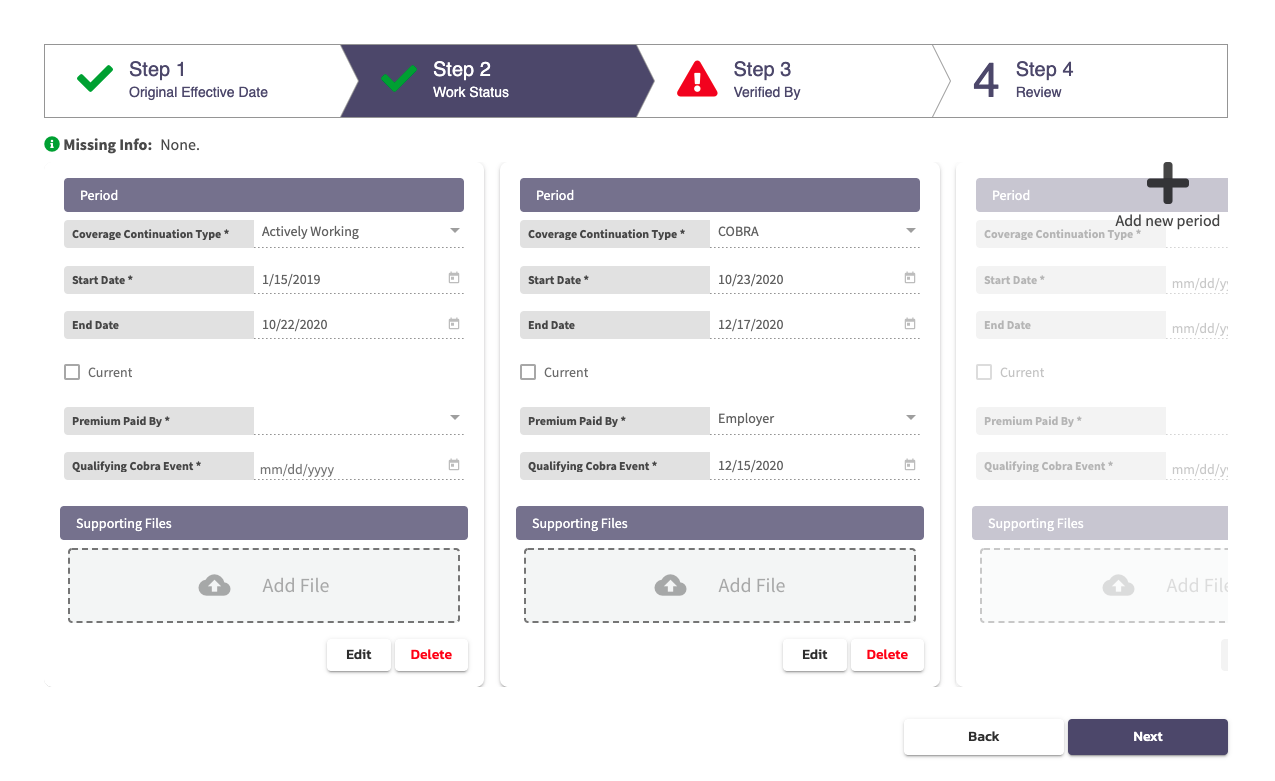
- Step 2: Fill out the work status dates and attach associated files until all dates are satisfied. You'll notice that this section creates a separate card for every work status entry. You can add, edit and delete any as needed. Be sure to hit save on the card. Anything you've saved will be preserved and can be accessed later if needed. Once satisfied press "Next".
- Step 3: Add your Name and Job Title for verification purposes. Press "Next"

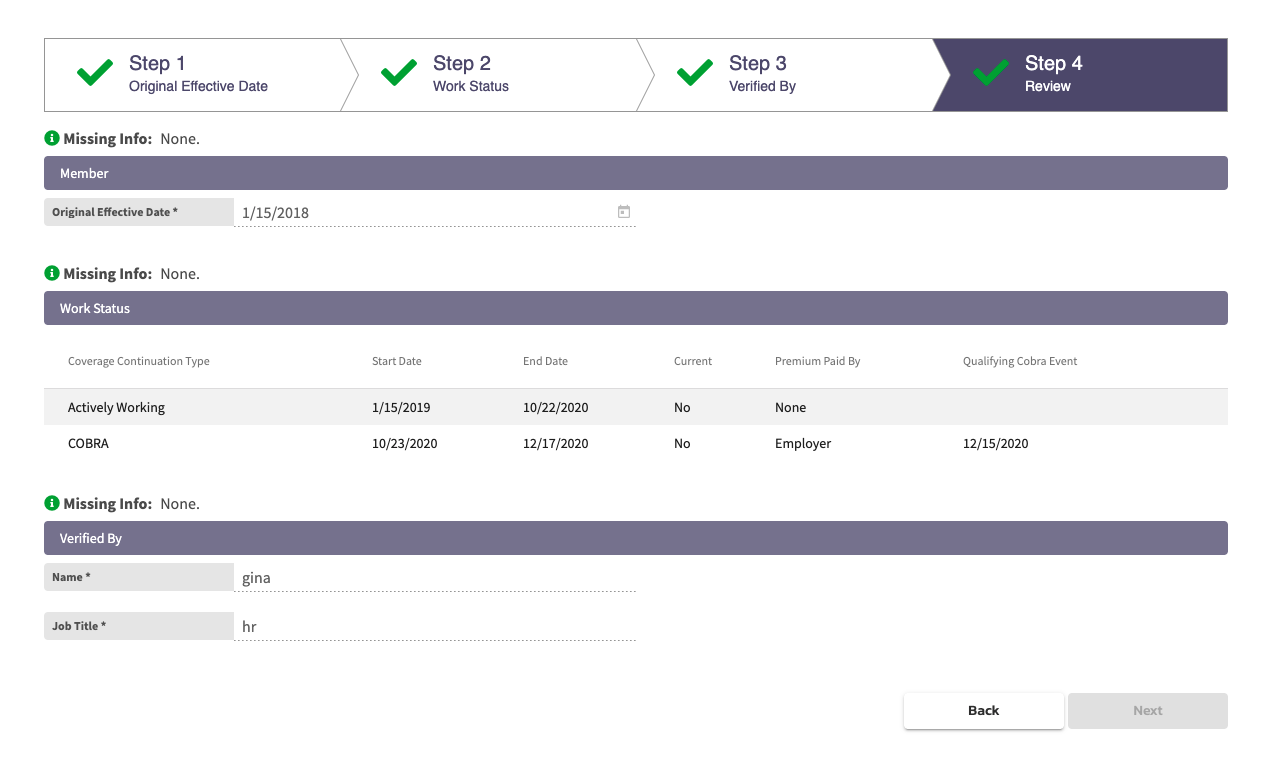
- Step 4: This is the Review Screen that summarizes what you've completed. If all information is satisfied the stepper will display green checkmarks on all steps. A red triangle will appear if more information is needed.
- Step 5: You're done. All of the information in the stepper is sent back to the TPA in real time along the way. There is no final submission that needs to occur. The user can simply close out their browser. If they ever need to return they can click on the link from the original email and add additional information.
Comments
0 comments
Please sign in to leave a comment.