WHAT’S NEW IN THIS RELEASE
Why Proposal Versioning?
Quote-LinQ producers need visibility into the % and $ premium savings driven via the Stop Loss marketing process. To support this, the product will be introducing workflow that imports and stores proposals by versions. An indirect benefit is that all users will have line of sight into different proposal versions that have been created over time for a better start to finish audit trail.
Carrier/MGU Experience
Proposal Creation
The primary activity that a Carrier/MGU needs to achieve is upload it's proposal pdf document, fill out the proposal form and submit it to the RFP Issuer.
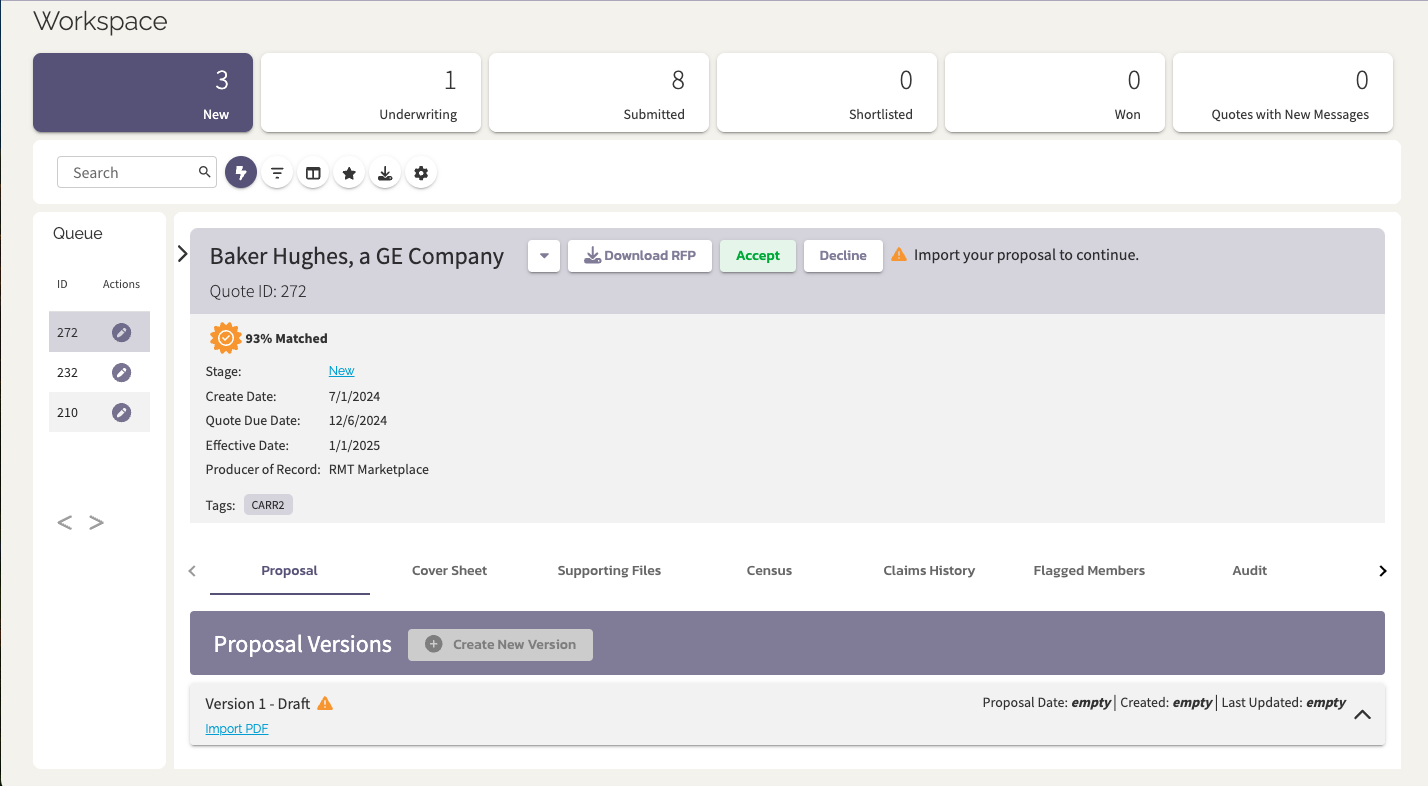
- Under the Proposal Tab the user will see Proposal Version Accordions.
- Prior to Submission, all Quote Responses will start with a Version 1 - Draft. Only after submission will the user be able to create additional versions.
|
 |
|
Initiate Proposal Version Input
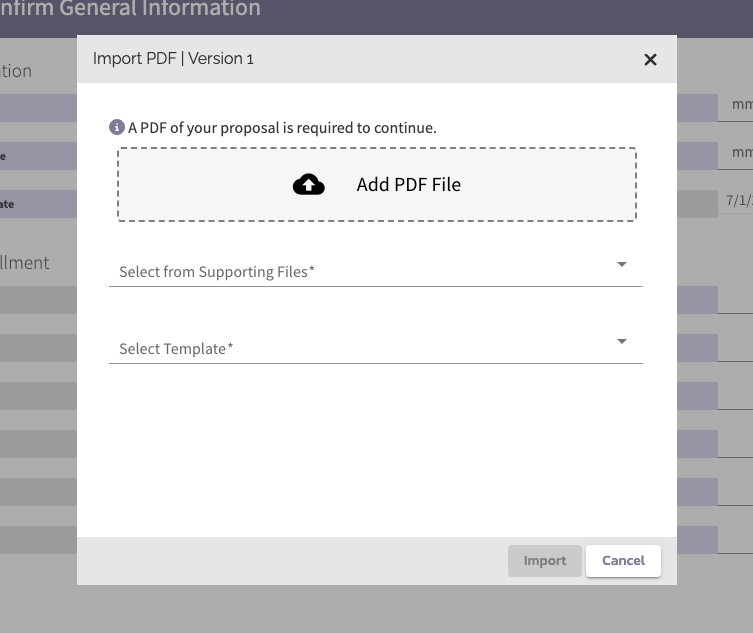
- Click Import PDF
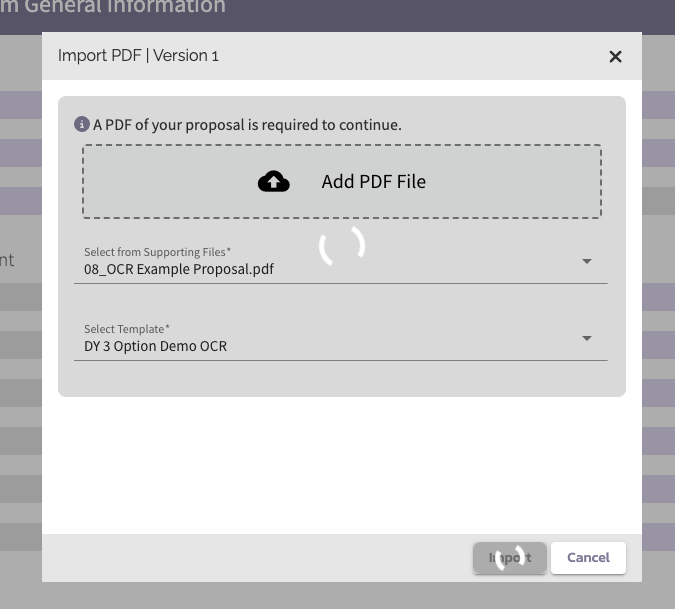
- The import PDF modal will appear and guide the user to import via their Org's available method (OCR, XML, Manual Entry).
- If an OCR template has been enabled, a user must use this method for input. This is to enhance the overall Quote-LinQ experience for you and the Producer.
- Trust but Verify: Please note that whatever method data gets imported into the proposal form, it's incumbent on the end user to validate information.
|
|
|
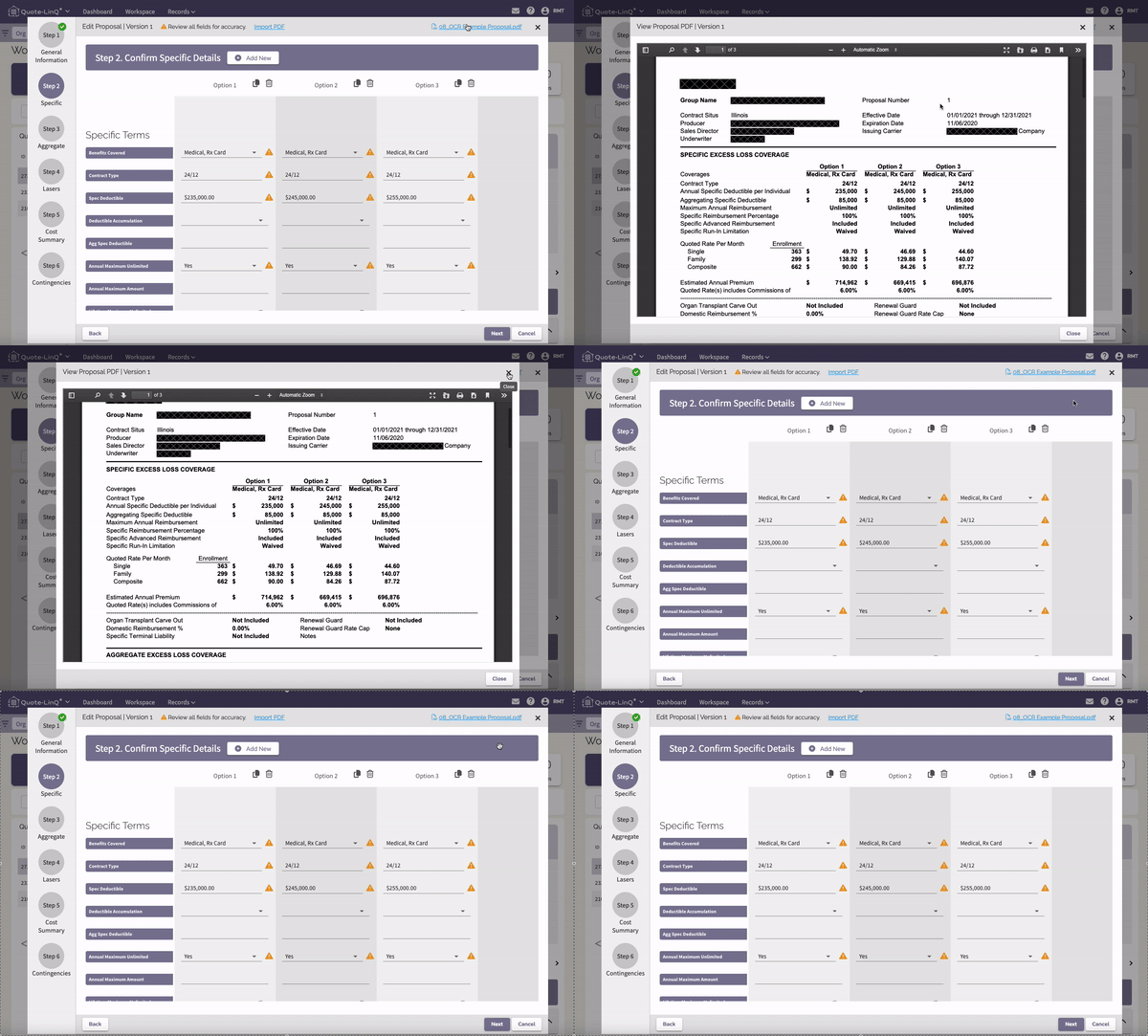
- Follow the Proposal Stepper to ensure the data is accurate and complete.
- The associated PDF is available for viewing via the link at the top right.
- If Version 1 is in Draft the PDF can be replaced by clicking Import PDF and it will start the process over and overwrite all data.
|
 |
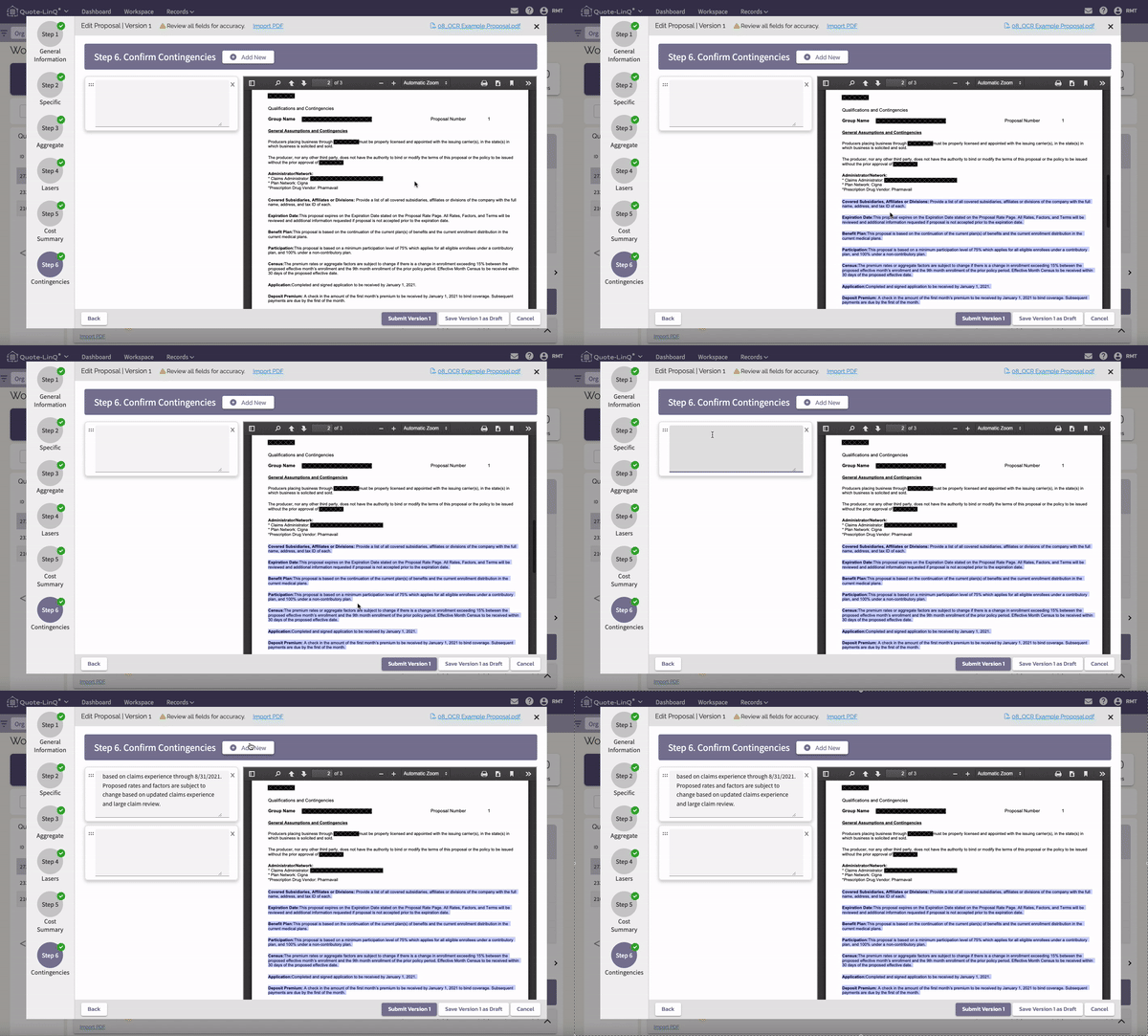
- Contingencies
- A new step has been added in the Proposal Stepper and will be stored with each Version. The latest version will adopt the prior version's contingencies for incremental updates.
- In the stepper, the PDF viewer will be displayed on the right of the screen so that the user may easily view, copy and paste desired contingencies into the proposal version.
|
 |
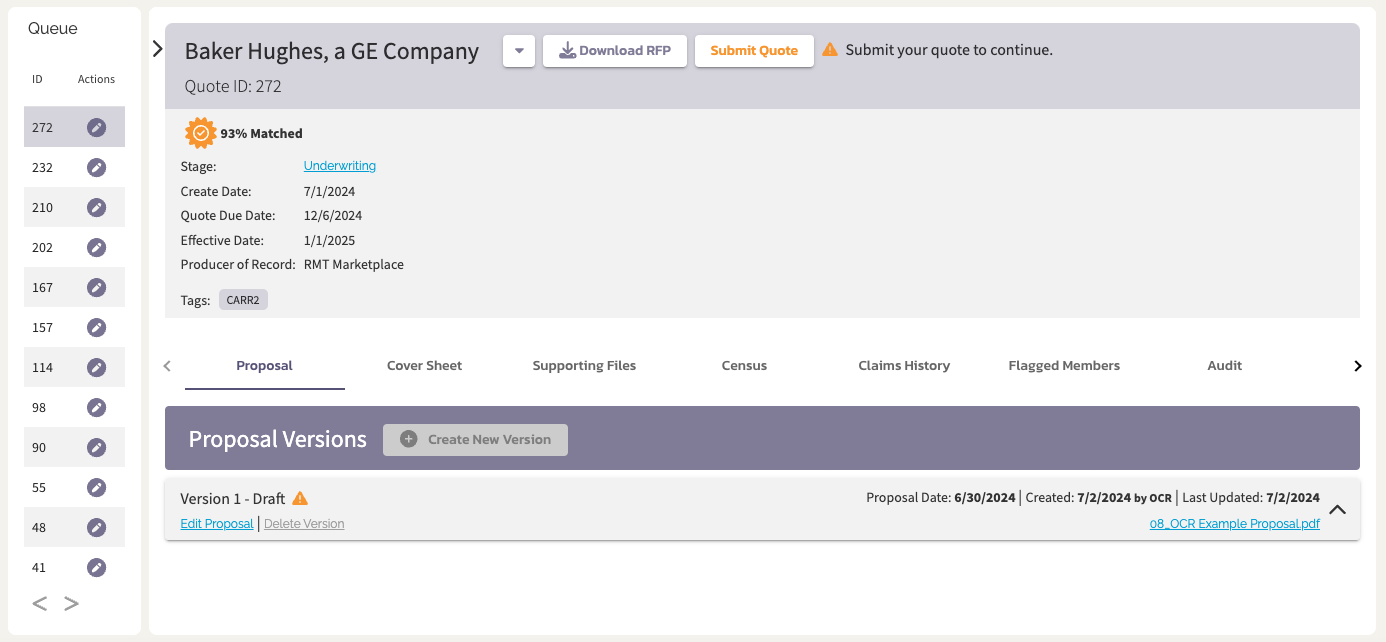
- Save Version 1 as Draft
- If you Save as Draft then the Quote will not be submitted to the Producer but all information imported and verified will be saved.
- The Quote will remain in the New or Underwriting stage.
- Be sure to come back and Submit Quote in order to share the proposal with the producer.
|
|
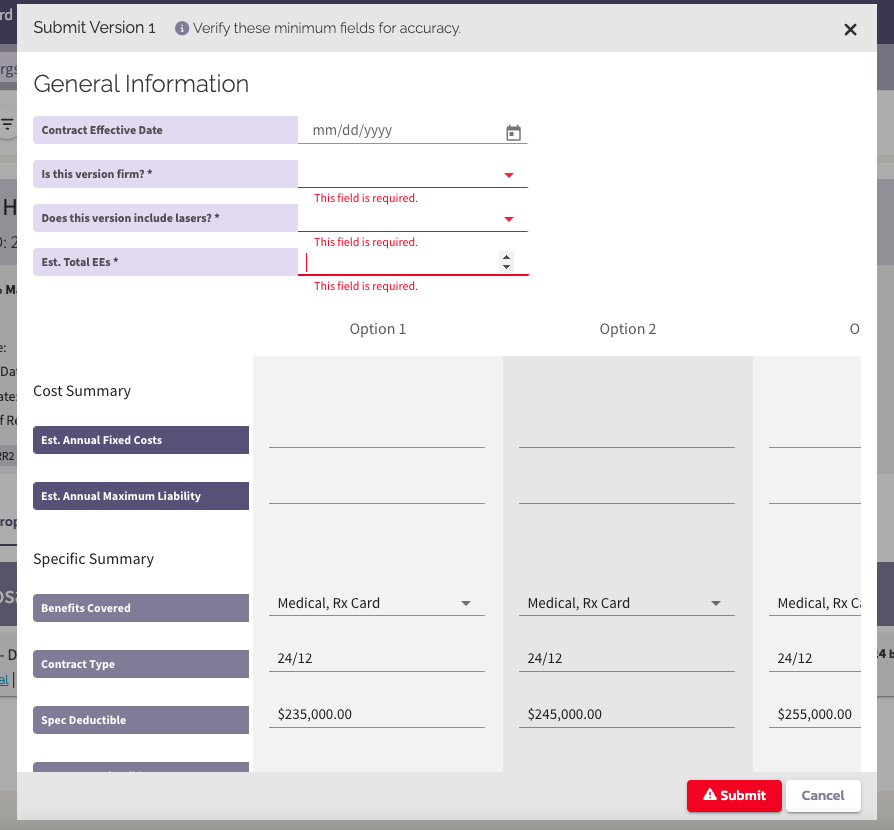
- Submit Quote
- Upon any submission a familiar Confirmation screen must be reviewed and completed.
|
|
|
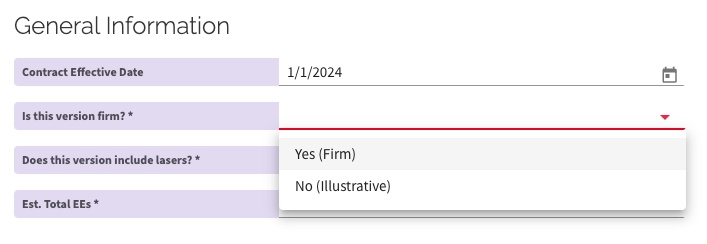
- Note that the "Proposal Status" field has been updated with new language.
- The field is now labeled "Is this version firm?"
- Values include:
- Yes (Firm)
- No (Illustrative)
- This field will only be pre-populated if the proposal was completed as "Firm" in the Proposal Stepper.
|
|
|
|
View / Edit Proposal
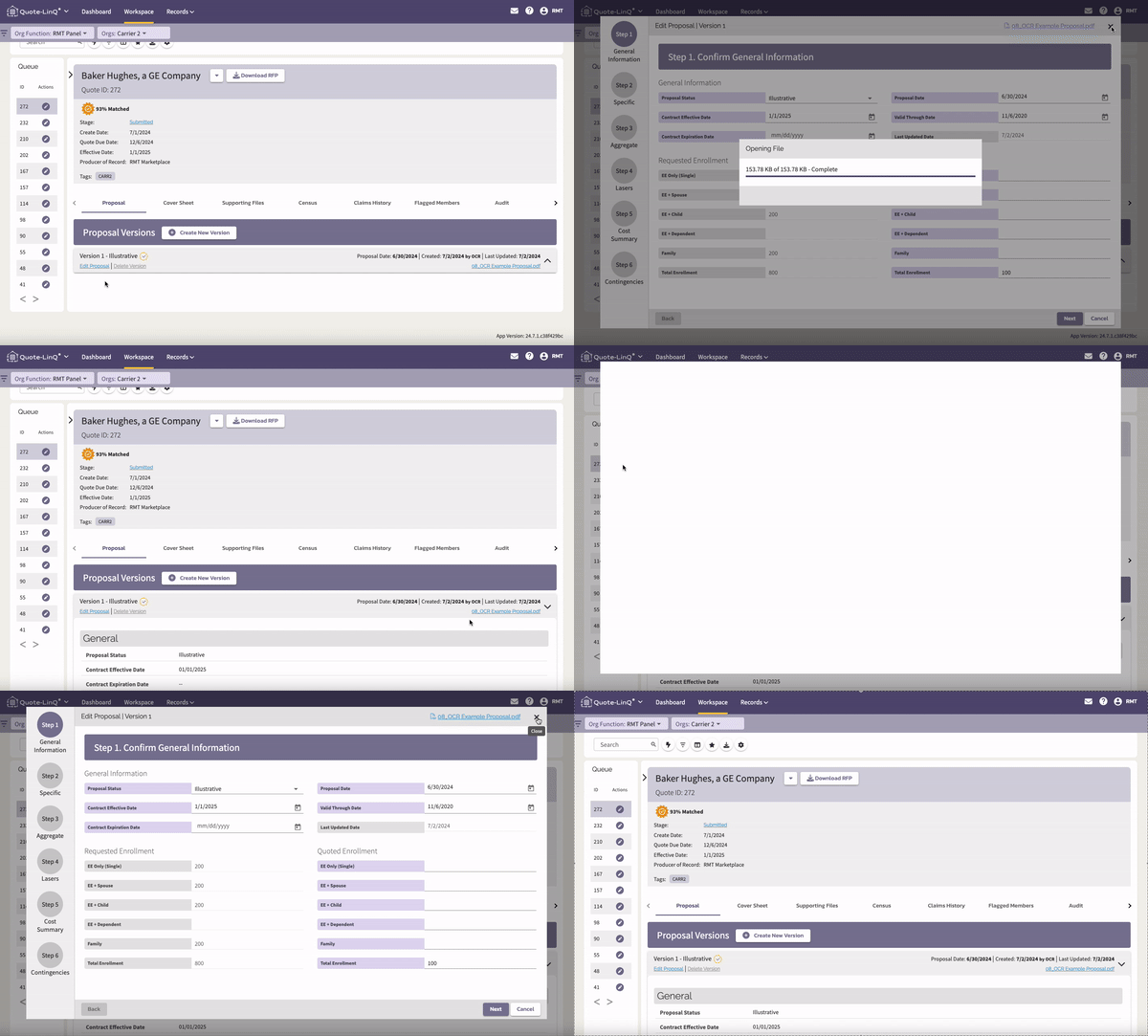
- In the Workspace view or edit the proposal thru the:
- Edit Proposal Link under the Version
- Accordion expand / collapse (read only view)
- Edit Pencil in the Quote Queue (will take you the most recent version)
|
|
|
Adding Subsequent Versions (e.g. v2, v3, etc.)
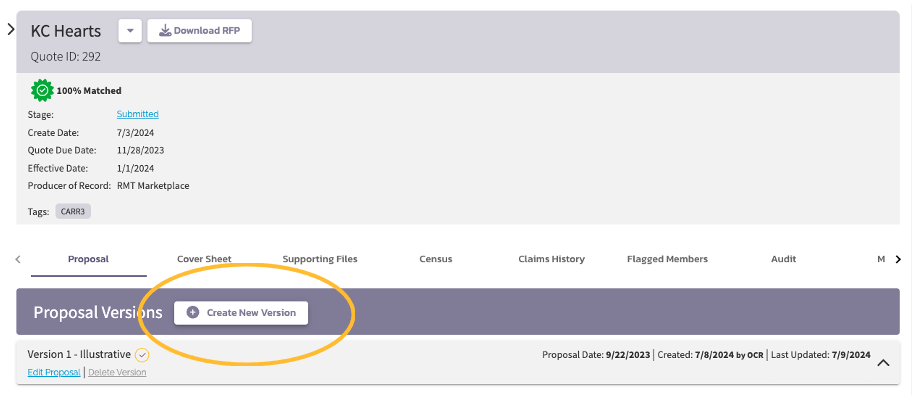
- When a new PDF Proposal is generated for quoting, Create a New Version
- Click Create New Version
- You will be prompted to import the PDF and complete the Proposal Stepper
|
 |
Additional Information
- Version 1 - Draft
- This is the only version that has draft functionality (e.g. can be saved without sharing with producer)
- PDF Proposals
- Every proposal version must have an association with a Proposal PDF
- All associations must be unique; one PDF can't be shared across multiple versions.
- Proposal PDFs paired with a Version can not be replaced or deleted (except for Version 1 when in Draft)
- Audit Trail
- Audit events have been enhanced to convey which proposal versions have been impacted and by what method (e.g. OCR, Manual Edit)
- Messages
- No changes have been introduced to messages and should be used as normal.

Comments
0 comments
Please sign in to leave a comment.