
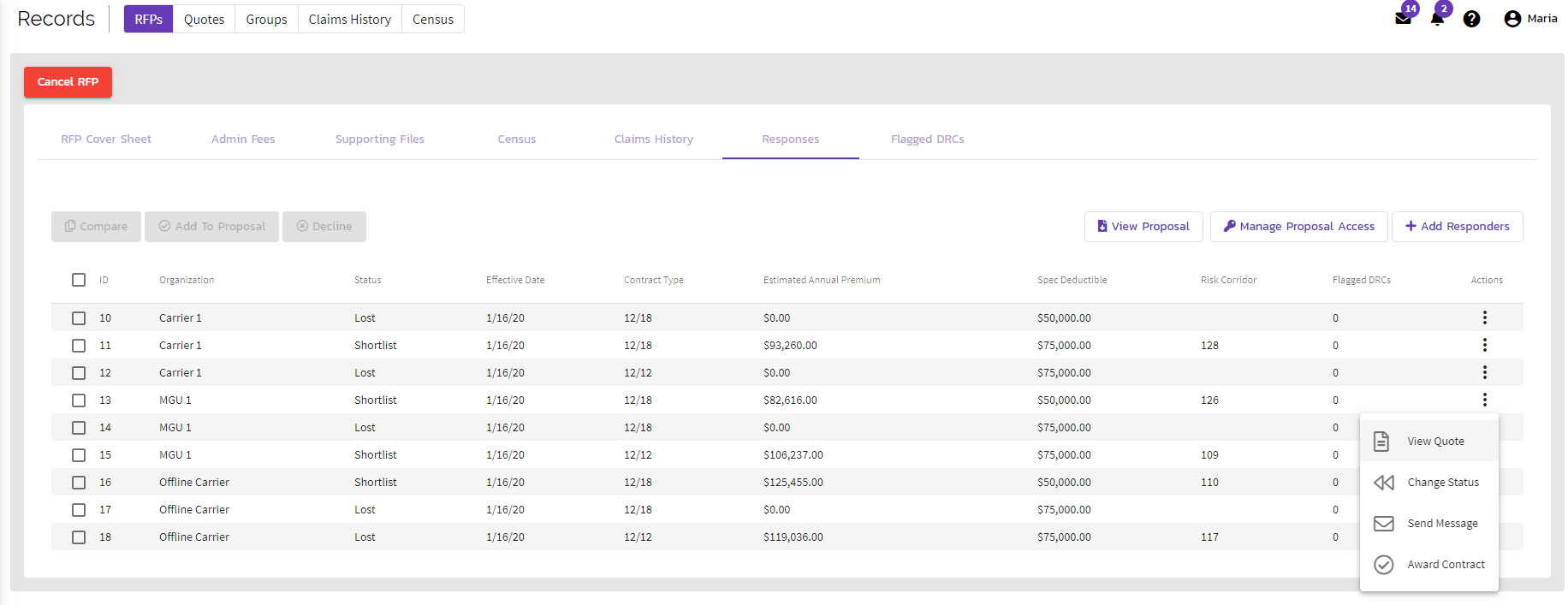
Once you have added carriers/MGUs to your response list for an RFP, you are then able to click the Actions icon next to individual organizations to View Quote. This allows you to see what the carrier/MGU sees, and where they can add details or documentation to your proposal.
When viewing a specific Quote, you're able to change the stage of that specific Quote. This is communicated to the carrier as well, so that everyone knows the status of the specific quote (whether or not it's been declined, or moved on for further consideration, etc)
Proposal
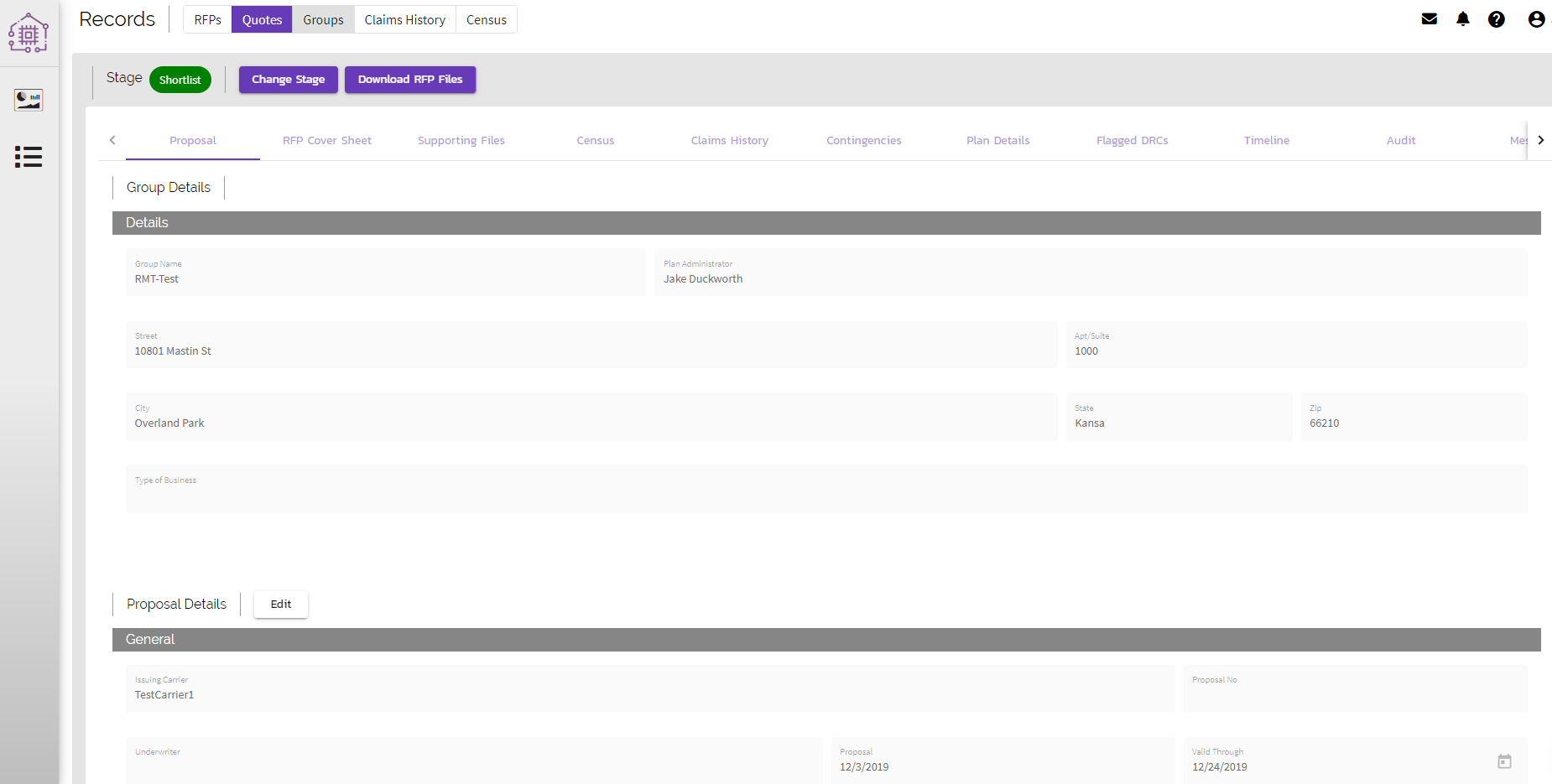
Proposal shows the read-only group information that includes group details, general information, the specific coverage proposal, enrollment rates, and coverage.
RFP Cover Sheet
Request Form shows the read-only RFP cover sheet that includes general request information, account details, broker details, enrollment, current employer contributions, current plan information, deadlines, terms, and fees.
Supporting Files
This allows you to add any additional documentation (i.e. 2017 Claims History or Last Year Plan Design, Rx Claims History). You can specify the type and description and upload all documents into the repository, so your information is all in one place and every carrier/MGU related to the RFP has all information.
Contingencies
The requesting organization is able to add contingencies to the quote request for you to view.
Census
A populated list of members previously set up when you created your account.
Claims History
A populated list of claims history previously set up when you created your account.
Plan Details
The Plan Designs that you created are shown here.
Timeline
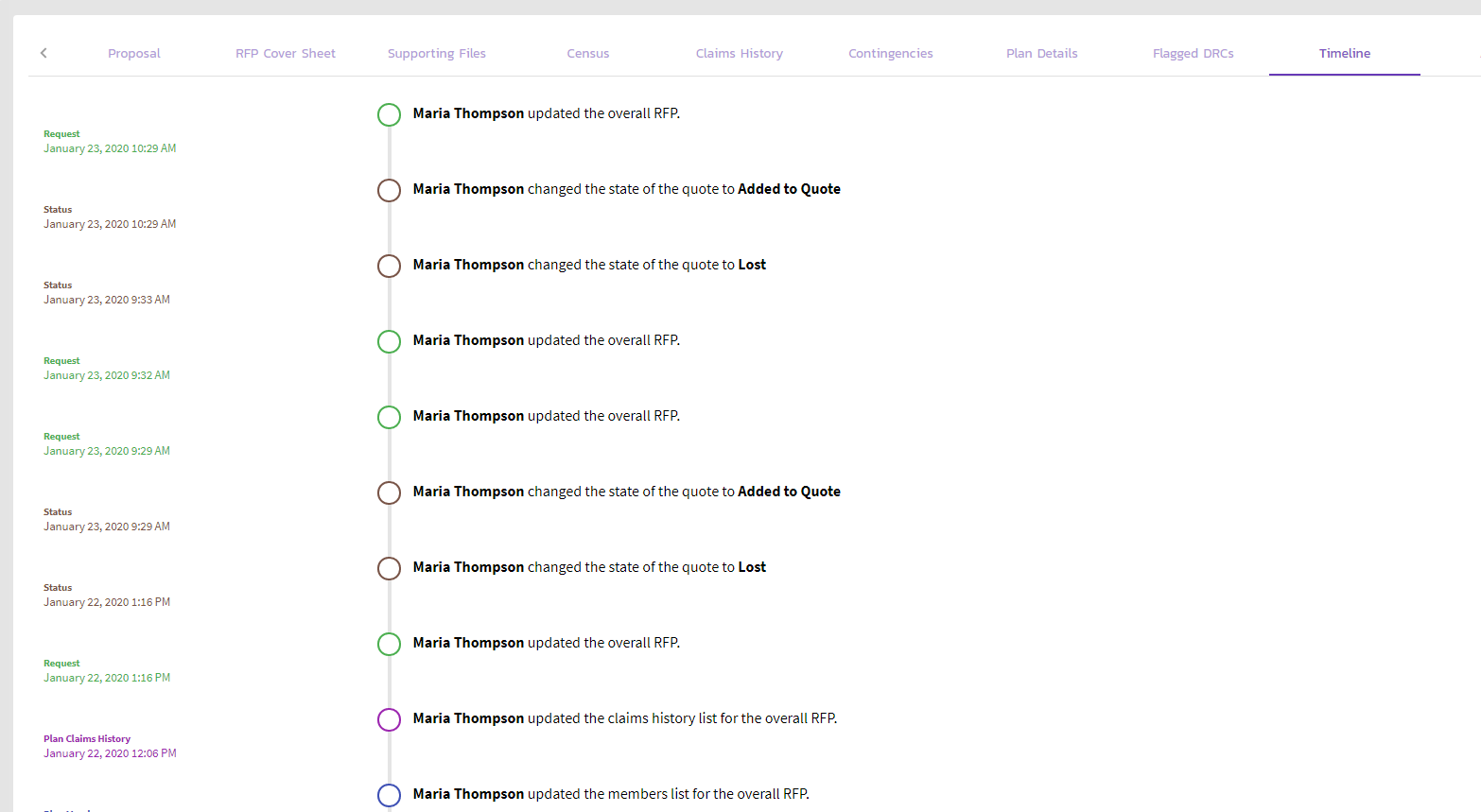
A visual of all events that have occurred throughout the quoting process.
Audit
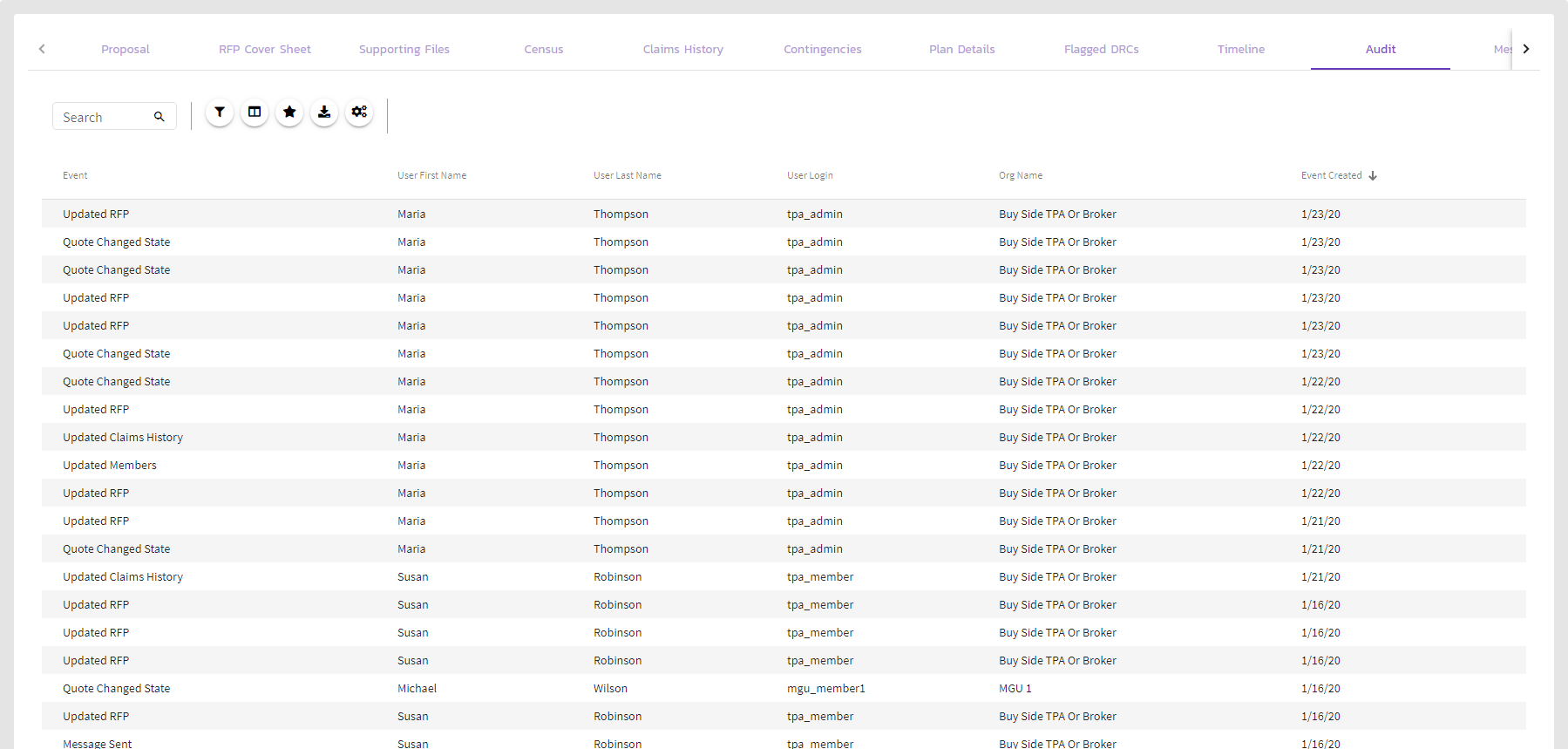
An easily filterable table version of timeline for auditing purposes.
Messages
A list of all messages between you and the carrier/MGU with the ability to send a reply in real time.
Comments
0 comments
Article is closed for comments.